
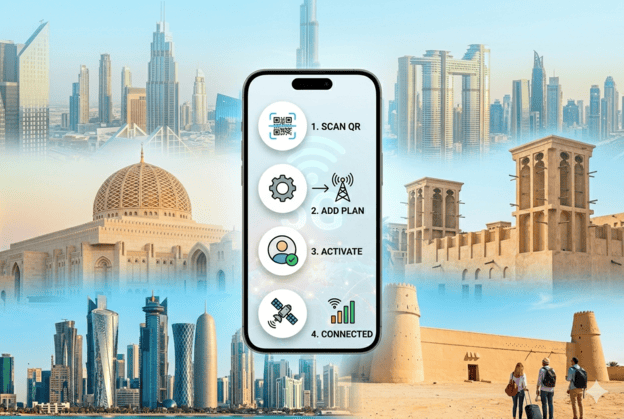
The emergence of eSIM technology has revolutionized the way we use mobile networks. With eSIM, you no longer need a physical SIM card to connect to your mobile network. This digital SIM allows you to activate a cellular plan from your carrier without using a physical SIM card. This is particularly beneficial for freque…
In this article
- Check Compatibility
- Obtain eSIM QR Code or Activation Information
- Open Settings
- Select Cellular
- Add Cellular Plan
- Scan QR Code or Enter Details Manually
- Label Your Plans
- Set Your Default Line
- Complete Cellular Plan Setup
- Verify Activation
- Additional Tips
- Switch Between Lines:
- Manage Data Usage
- Contact Support:
- Final Thoughts
Check Compatibility
Before proceeding with the step-by-step guide to eSIM activation on iPhone, it’s crucial to verify that your iPhone model supports eSIM. eSIM is compatible with iPhone models from iPhone XS, iPhone XS Max, iPhone XR, and later versions. Ensure your iPhone is updated to the latest iOS version for the best experience.
Obtain eSIM QR Code or Activation Information
The next step in this step-by-step guide to eSIM activation on iPhone is to get the eSIM QR code or activation details from your carrier. You can usually receive this information via email or through your carrier's mobile app. Ensure you have this information handy before starting the activation process.
Open Settings
The next step in this step-by-step guide to eSIM activation on iPhone is to get the eSIM QR code or activation details from your carrier. You can usually receive this information via email or through your carrier's mobile app. Ensure you have this information handy before starting the activation process.
Select Cellular
Navigate to Cellular or Mobile Data from the settings menu. This section of the step-by-step guide to eSIM activation on iPhone is where you'll manage all your mobile data settings.
Add Cellular Plan
Here, you will tap on Add Cellular Plan. This option allows you to start the eSIM activation process by scanning the provided QR code or manually entering the activation details. This is a critical step in our step-by-step guide to eSIM activation on iPhone.
Scan QR Code or Enter Details Manually
In this part of the step-by-step guide to eSIM activation on iPhone, you need to scan the QR code using your iPhone’s camera. Place the QR code within the frame and let your iPhone scan it. If you don't have a QR code, select Enter Details Manually and input the information provided by your carrier.
Label Your Plans
Once the QR code is scanned or the details are entered, you will be prompted to label your plans. This is helpful for distinguishing between different lines, such as personal, work, or travel plans. Labeling your plans correctly is an essential part of this step-by-step guide to eSIM activation on iPhone.
Set Your Default Line
The next step in our step-by-step guide to eSIM activation on iPhone is setting your default line. You will choose which line to use for iMessage, FaceTime, and calls. Additionally, you can select which line to use for cellular data.
Complete Cellular Plan Setup
Follow the screen-based instructions to complete the setup procedure. Confirm the activation by checking that your eSIM is listed under Cellular Plans in your settings. This confirmation step is crucial in our step-by-step guide to eSIM activation on iPhone to ensure everything is set up correctly.
Verify Activation
Finally, make a test call or use data to ensure your eSIM is activated and functioning properly. This verification step is the last but significant part of our step-by-step guide to eSIM activation on iPhone.
Additional Tips
Switch Between Lines:
- You can switch between lines by going to Settings > Cellular > Cellular Plansand selecting the line you want to use.
Manage Data Usage
- Manage your data usage for each line under Settings > Cellular > Cellular Data Options.
Contact Support:
- If you encounter any issues, email us at support@etijwaal.com or Instant chat on Whatsapp.
Final Thoughts
By carefully following this step-by-step guide to eSIM activation on iPhone, you can take full advantage of the convenience and flexibility offered by eSIM technology. Whether you're a frequent traveler needing multiple carrier options or someone looking to streamline your mobile connectivity, eSIM is a powerful feature that enhances your iPhone experience. Enjoy the seamless transition to digital SIM technology with this comprehensive guide.
